The LEA Staff Help Desk role allows approved staff to assist employee accounts within the LEA or PSU scope granted to them. This role does not provide access to student accounts.
Request the role
Sign in to the NCEdCloud IAM Service at my.ncedcloud.org.
Open the module menu and select Requests.
Expand Entitlements in the left navigation and select Catalog.
Search for LEA Staff Help Desk.
Select the role, then select Request.
Enter your code in PSU / CHARTER CODE (ALL CAPS). The screenshot below uses
ABConly as an example.Add request comments if needed, then select Request.
The request is sent to an NCEdCloud LEA Administrator for approval. After the role is granted, open People and check for the new delegation. If it does not appear in your current session, sign out and sign back in.
.png)
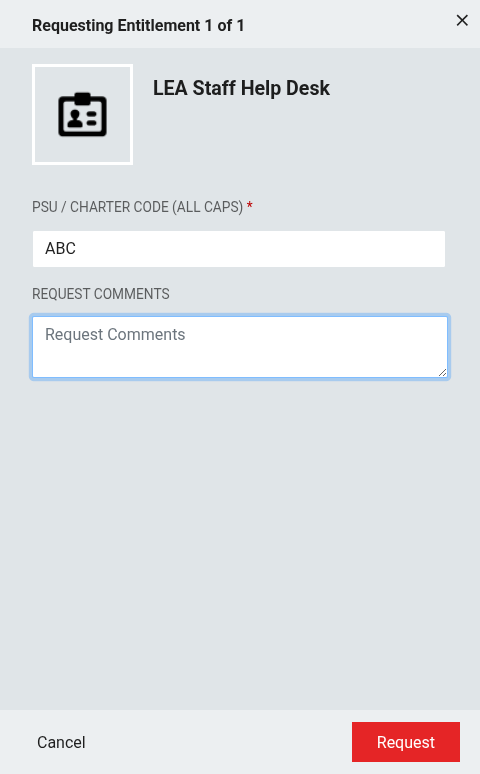
Access staff accounts
After the role is granted:
Open the application menu and select People.
Select Help Desk for Employees.
Search for the staff account you need to assist.
Select the correct account before performing an action.
Search results are limited to staff accounts in the LEA or PSU scope granted to you. Only active employee accounts in that scope are included.
Available actions
The Help Desk for Employees view provides these actions:
Change Password — set a new password for the selected staff account.
Update Challenge Responses — reset the selected staff member's saved challenge responses.
Reset TOTP — clear the selected staff member's TOTP registration so they can set it up again at their next sign-in.
Edit Profile — view or update only the profile fields made available to this role.
Manage WebAuthn — view or add WebAuthn devices for the selected staff account.
Delete WebAuthn — remove an existing WebAuthn device from the selected staff account.
The actions displayed can depend on the selected account and its current state.
Scope and limitations
Access is limited to staff accounts in the approved LEA or PSU scope.
The role does not provide access to student accounts.
It does not provide student QR-code or Pictograph actions.
It cannot delete a staff account. Delete WebAuthn removes a registered WebAuthn device, not the person's NCEdCloud account.
Always confirm that you selected the correct staff account before making a change.
Remove the role
To remove your own LEA Staff Help Desk access:
Open Requests.
Select Entitlements, then My Entitlements.
Locate the LEA Staff Help Desk entitlement for the scope you no longer need.
Select Revoke.
If you have the role for more than one scope, revoke only the entitlement for the scope you no longer support.
For additional request and revoke guidance, see Privileged Roles.