TOTP FAQ
Beginning July 1, 2026, MFA will be mandatory for all employees statewide. Prior to this date, districts may choose to roll out MFA. This document addresses frequently asked questions and common scenarios related to MFA implementation and troubleshooting.
Why Users Are Prompted for MFA (TOTP) in NCEdCloud
Users will be prompted for MFA if any of the following apply:
The user holds a privileged role in NCEdCloud, such as LEA Administrator, LEA Data Auditor, or one of the Help Desk roles.
The "Enforce MFA" checkbox on the user's profile has been enabled.
The user's PSU has submitted the All Staff (Enforced) MFA Opt-in Request, enabling MFA for all staff district-wide.
How do I enable MFA for specific users?
Individual Profile: Edit a user's profile in the People Module > Manage LEA Employees and check the "Enforce MFA" box. Changes take effect the next time the user signs in.
Enforce MFA (File Upload): Upload a list of Staff UIDs to enable MFA for multiple employees at once using the Enforce MFA (File Upload) workflow in the Requests Catalog. This request runs automatically and typically takes effect within 10 minutes.
Enforce MFA (School Code): Enter a school code to enable MFA for all employees currently active at a given school. This request also runs automatically and typically takes effect within 10 minutes.
Additionally, individual users can enable MFA for themselves by requesting the "Enforce MFA (Single User)" option in the Requests Catalog.
How can I see who has the "Enforce MFA" checkbox enabled?
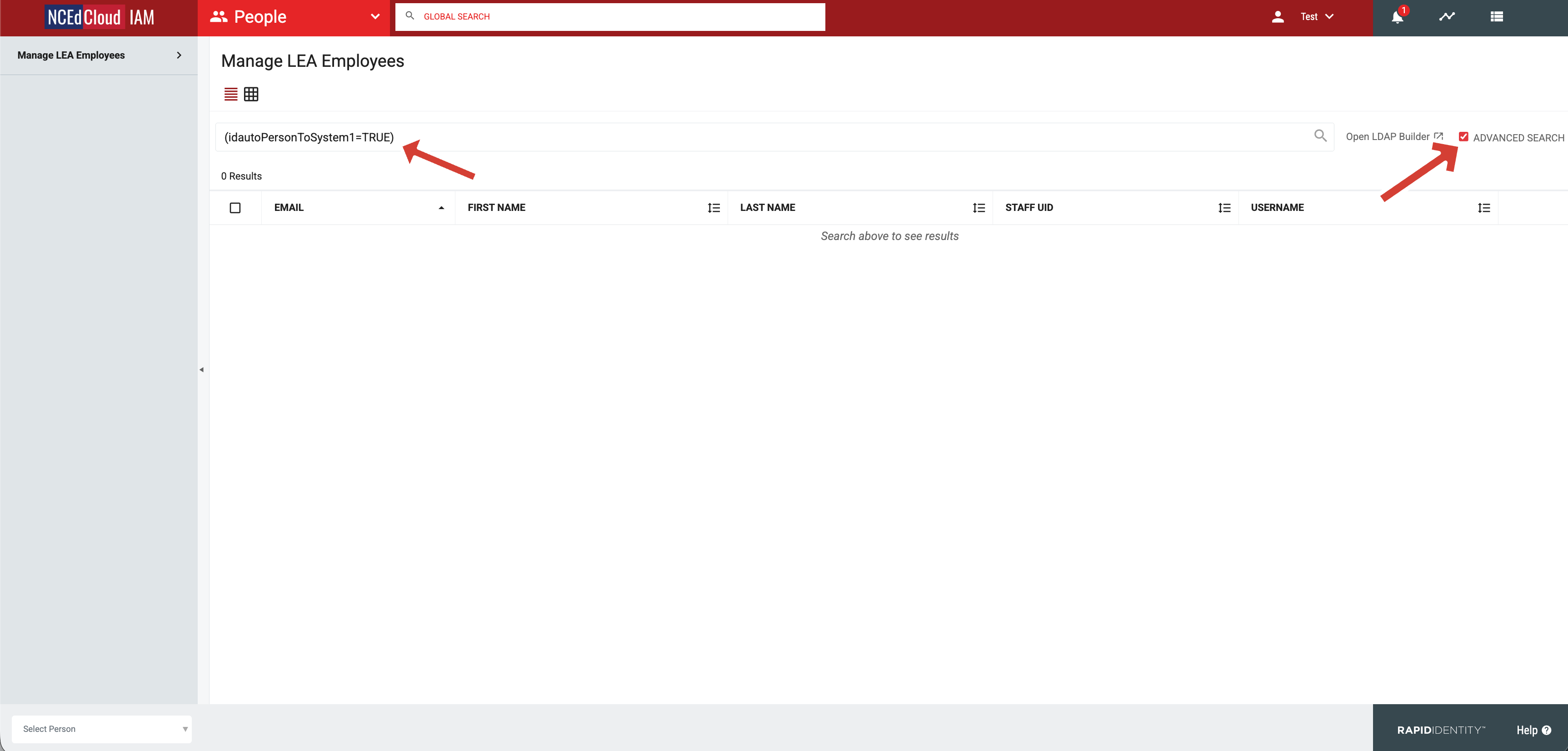
To view which employees have the "Enforce MFA" checkbox enabled, navigate to the People Module > Manage LEA Employees and check the Advanced Search box. Enter one of the following filters and click Search:
(idautoPersonToSystem1=TRUE) - displays all users who have the "Enforce MFA" checkbox enabled.
(idautoPersonToSystem1!=TRUE) - displays all users who do not have the "Enforce MFA" checkbox enabled.
Once MFA has been enforced for all staff at my PSU, do employees still need to have the ‘Enforce MFA’ box checked?
No. Once the All Staff (Enforced) MFA Opt-in Request has been completed, the individual ‘Enforce MFA’ checkbox no longer determines who receives MFA and has no impact on users.
Will users be required to set up TOTP again when we enforce MFA for all Staff?
No. Once a user has configured their TOTP, they will not be prompted to set it up again.
What TOTP authenticator apps can users use?
Any standard app that generates time-based one-time passcodes (TOTP) is supported.
Common examples include:
2FA Authenticator Chrome Extension
Do users have to use a phone for MFA?
No. A smartphone is not required to use MFA.
Users who prefer not to use a mobile device may use a browser-based authenticator extension on their computer. These extensions, such as the 2FA Authenticator Chrome extension, function the same way as mobile authenticator apps by generating time-based one-time passcodes (TOTP).
Can users reset their own TOTP?
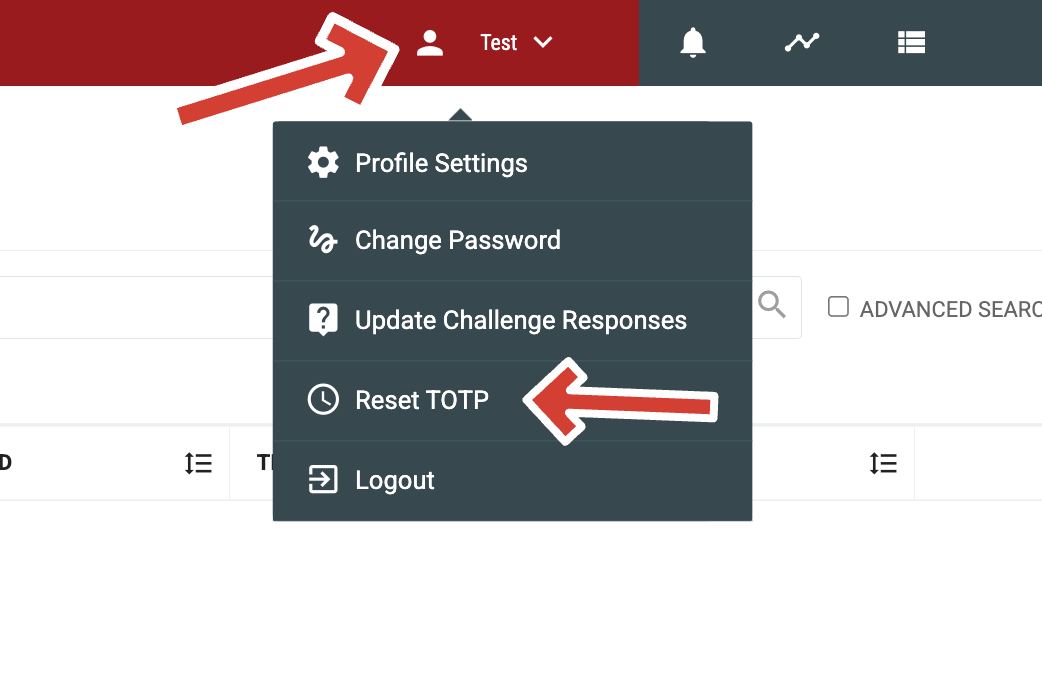
Employees can reset their own TOTP by selecting "Reset OTP" from the User Profile menu in the top right corner after logging in.
Which Privileged roles can reset users TOTP?
Users holding the LEA Administrator, LEA Help Desk, or School Help Desk roles have access to “Reset TOTP” button for employees via the People module. This will clear any existing TOTP configurations and trigger the setup screen on the next login. Note that TOTPs for LEA Administrators can only be reset by another LEA Administrator.
Troubleshooting
Why isn't the OTP (One-Time Passcode) not working?
Verify that the user’s TOTP device time is correct and synced.
Confirm that the user is using the correct TOTP device associated with their account.
What if a user is not prompted with the QR code screen and is instead asked to enter a code?
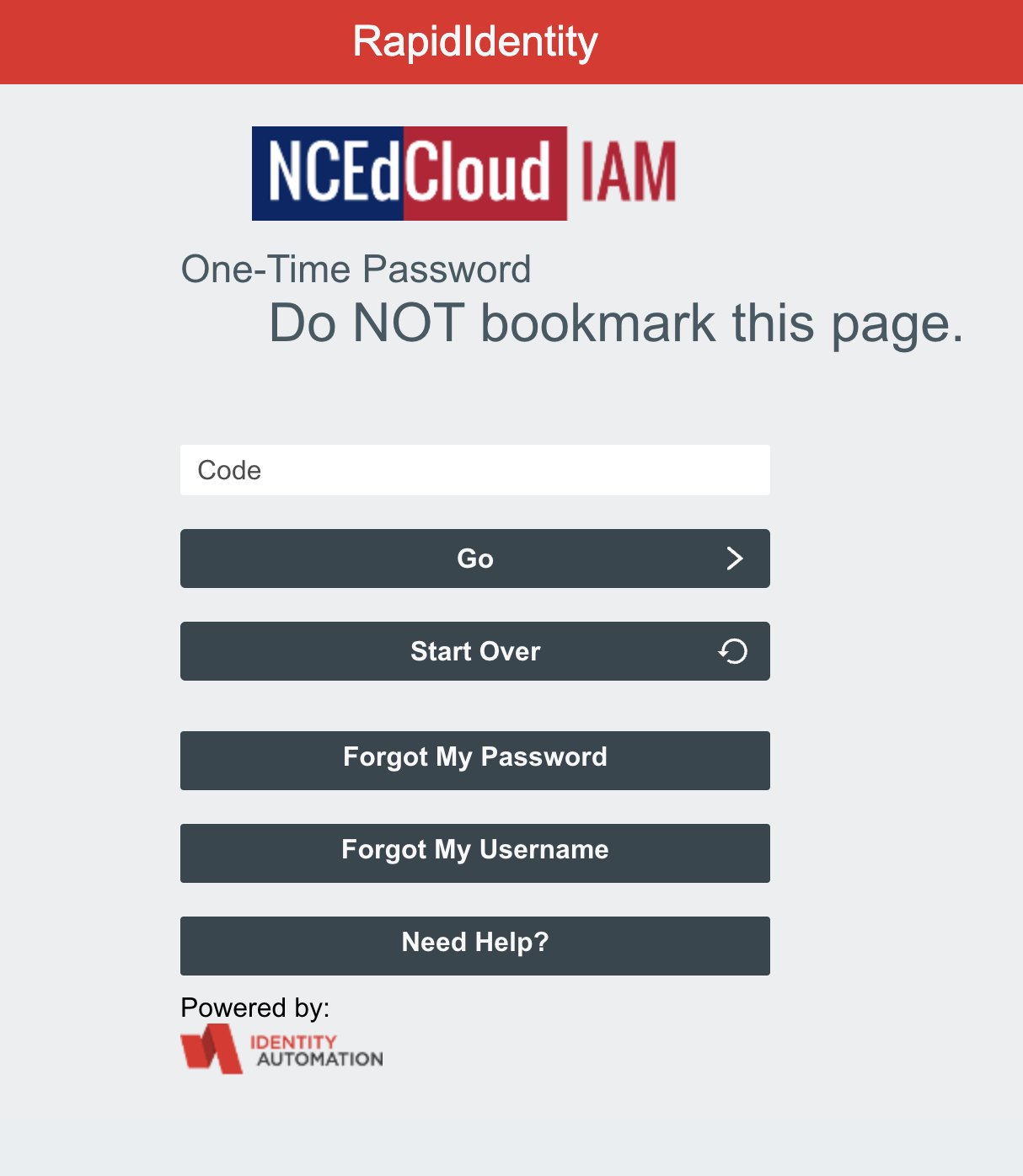
If a user is not presented with the QR code screen, it means they have previously configured TOTP on their account. If the user no longer has access to their original device, their TOTP can be reset by navigating to the People Module > Manage LEA Employees, locating and selecting the user, and clicking the Reset TOTP button. On their next login attempt, the user will be presented with the QR code screen to set up TOTP again.
Additional Information
How can I get more information on the upcoming MFA requirements?
Additional information will be available through our quarterly “Ask the Experts” Webinar. Please click here to register.
Who can I contact if I need more help?
If you have questions or need assistance with MFA, you can submit a request through our support portal (see “How to submit a support ticket”) or by email to support@identityautomation.com.