The NCEdCloud Student Password Regeneration workflow was designed to enable LEA Administrators to regenerate student default passwords and reset current student passwords to the newly generated value if so desired.
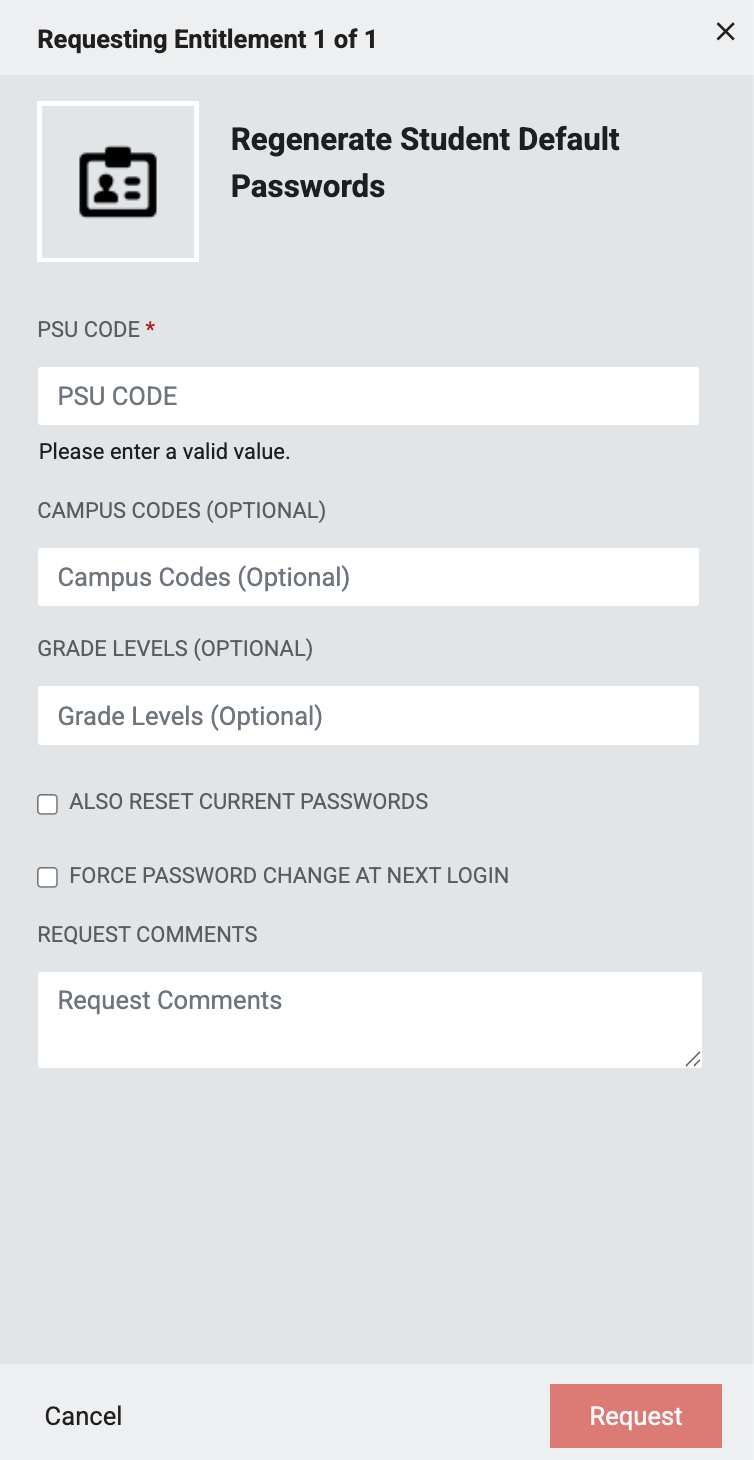
*Steps required to access this workflow can be found here
PSU CODE (Required): 3-digit PSU Code of the requesting LEA Administrator
CAMPUS CODES (optional): A comma delimited list of six digit alphanumeric School codes that belong to the specified PSU in the LEA CODE field. This field is not required.
GRADE LEVELS (optional): A comma delimited list of grade levels you wish to target. If any of the grade level values do not match a grade in the list below, the process will fail. This field is not required.
- -5, -4, -3, -2, -1, 0, 1, 2, 3, 4, 5, 6, 7, 8, 9, 10, 11, 12, 13, -9
ALSO RESET CURRENT PASSWORDS (Optional)(Checkbox): If checked, this option will reset the students’ actual login passwords to the new default passwords that are generated.
FORCE PASSWORD CHANGE AT NEXT LOGIN (Optional)(Checkbox): If checked, this option will require the students to set a new password after their initial login with the new default password. Note: This option will only take effect if ALSO RESET CURRENT PASSWORDS is checked.
REQUEST COMMENTS (Optional): Enter any description you’d like to have associated this request.
After clicking Request, all students targeted by the filter options specified will have their Default Password attribute changed to a different value.
If ALSO RESET CURRENT PASSWORDS is checked, the students will also have their actual login password updated to the new default password value and will need to use that password at next login.
If FORCE PASSWORD CHANGE AT NEXT LOGIN is checked (and ALSO RESET CURRENT PASSWORDS is as well), all students targeted by the action will need to reset their password after first logging in with the new default password.
FAQs
What if I can't see the "Regenerate Student Default Passwords" request in the catalog?
You will need to have the LEA Administrator Role in order to access this request. More information on requesting Privileged Roles can be found here: Privileged Roles Info
What happens after I submit the "Regenerate Student Default Passwords" form?
After submitting the 'Regenerate Student Default Passwords' request you can verify the request was completed by visiting the People module in NCEdCloud to confirm that the Students default password was regenerated. If you have any questions or concerns please reach out directly to Identity Automation (support@identityautomation.com).