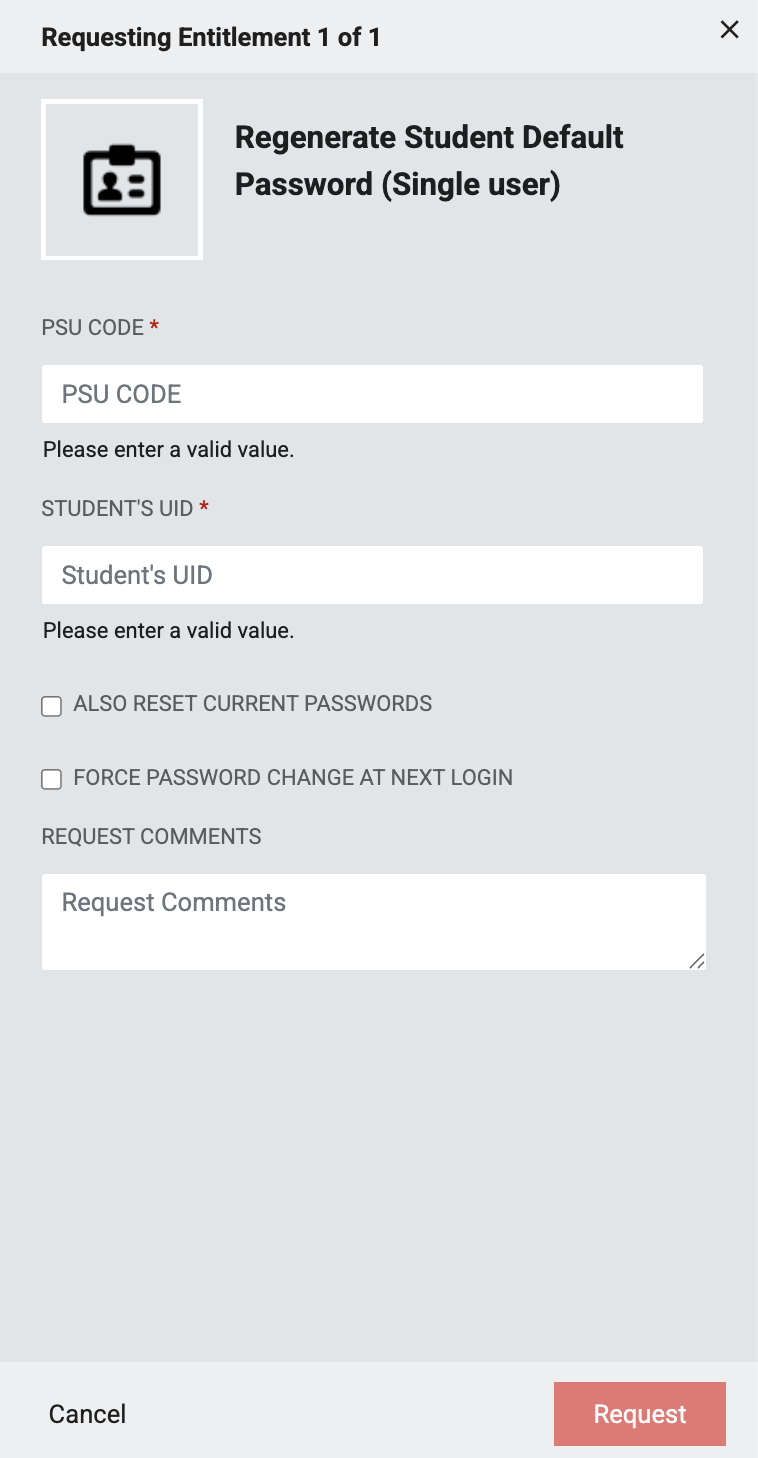
The NCEdCloud Student Password Regeneration (Single user) workflow allows LEA Administrators to regenerate a student default password. Administrators can also choose to reset the current student's password to the newly generated value.
*Steps required to access this workflow can be found here
PSU CODE (Required): 3-digit PSU Code of the requesting LEA Administrator
STUDENT'S UID (Required): The UID of the Student who's default password will regenerated
ALSO RESET CURRENT PASSWORD (Optional)(Checkbox): Check this box to set the newly generated Student default password as their current password
FORCE PASSWORD CHANGE AT NEXT LOGIN (Optional)(Checkbox): Check this box to require the Student to change their password on their next login
REQUEST COMMENTS (Optional): Enter any description you’d like to have associated this request.
Note: All required fields will need to be completed before you're able to click the request button to submit this form. The required fields are listed in this doc and are also marked with a red asterisk(*) on the form.
FAQs
What if I can't see the "Regenerate Student Default Password (Single user)" request in the catalog?
You will need to have the LEA Administrator Role in order to access this request. More information on requesting Privileged Roles can be found here: Privileged Roles Info
What happens after I submit the "Regenerate Student Default Password (Single user)" form?
After submitting the 'Regenerate Student Default Password (Single user)' request you can verify the request was completed by visiting the People module in NCEdCloud to confirm that the Student's default password was regenerated. If you have any questions or concerns please reach out directly to Identity Automation (support@identityautomation.com).