Multi-Factor Authentication (MFA) adds an extra layer of security to user accounts. This enhanced security may be required for various reasons, such as accessing Personally Identifiable Information (PII) of students and/or employees, financial or HR data, or administrator and technical support accounts. Users that don’t have privileged roles, can have their accounts set to require MFA whenever they log in. Using this workflow, an LEA Administrator can enforce MFA for all currently active staff associated with a specified school code. Please note: Only users with the NCEdCloud LEA Administrator role will have access to submit this workflow. More information on how MFA is used with NCEdCloud can be found here: Getting Started with Time-Based One-Time Passcode (TOTP)
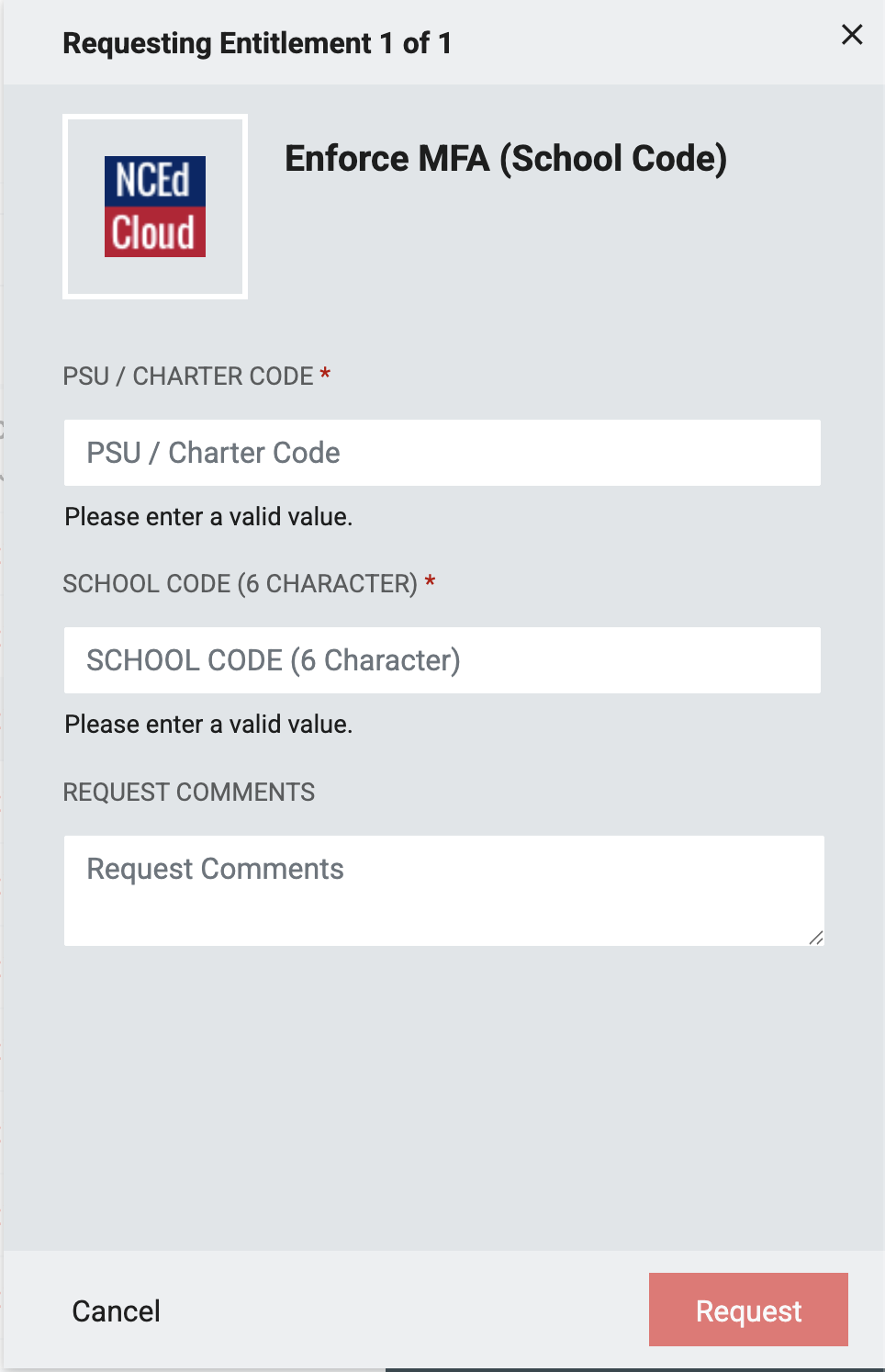
*Steps required to access this workflow can be found here
PSU CODE (Required): 3-digit PSU Code of the requesting LEA Administrator
SCHOOL CODE (Required): Enter the 6-character school code for the selected school where MFA will be enforced for staff.
REQUEST COMMENTS (Optional): Enter any description you’d like to have associated this request.
Note: All required fields will need to be completed before you're able to click the request button to submit this form. The required fields are listed in this doc and are also marked with a red asterisk(*) on the form.
This workflow applies the 'Enforce MFA' flag to all currently active staff users associated with the specified school code who do not already have the flag applied. The flag can be viewed or updated in the People module of NCEdCloud by searching for a user, selecting them, and clicking Details.

After the workflow completes, you will receive an email with instructions on where to find a file listing the staff UIDs for whom the 'Enforced MFA' flag was applied. To access the file, open the Files module from the drop-down menu, select LEA Data Bucket, and navigate to your PSU code file share. A folder named Enforced MFA will be generated and will contain the timestamped file.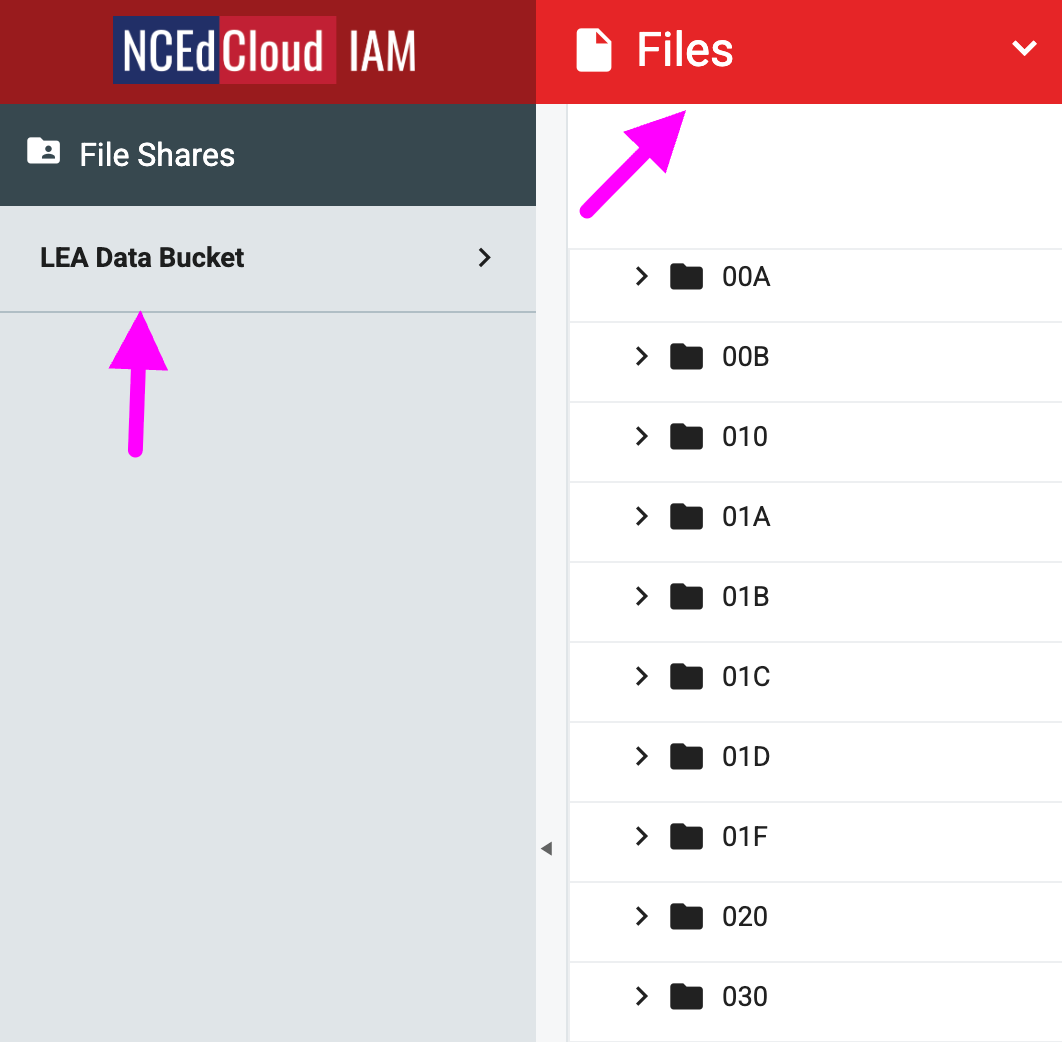
*This workflow runs as a one-time occurrence; new or returning staff will not have the Enforce MFA flag automatically applied.
FAQs
What if I can't see the "Enforce MFA (School Code)" request in the catalog?
You will need to have the LEA Administrator Role in order to access this request. More information on requesting Privileged Roles can be found here: Privileged Roles Info
How do I use MFA to login to NCEdCloud?
Additional information on how to use MFA to login to NCEdCloud can be found here: Getting Started with Time-Based One-Time Passcode (TOTP)
What happens after I submit the "Enforce MFA (School Code)" form?
After submitting the "Enforce MFA (School Code)" form you will receive an email to the email address listed in NCEdCloud account. If you have any question about this workflow please submit a support ticket with Identity Automation by using the support portal (How to submit support ticket) or by email to support@identityautomation.com