All staff will be required to set up Multi-Factor Authentication (MFA) to access NCEdCloud. By default, NCEdCloud uses Time-Based One-Time Passcode (TOTP) for MFA. When you log in to NCEdCloud for the first time, you will be guided to a TOTP setup screen if you have not set it up before or if your previous TOTP has been reset.
What is TOTP?
TOTP is an extra layer of security that helps protect your NCEdCloud account. In addition to your username and password, you enter a temporary code generated by an authenticator app on your device.
Each 6-digit code:
- Is automatically generated by the app
- Changes every 30 seconds
- Can only be used once
What do I need to set it up?
To use TOTP, you will need an authenticator app installed on your smartphone, tablet, or computer.
Step 1: Install an authenticator app
We recommend one of these options. Each link goes to step-by-step setup instructions for NCEdCloud:
• Google Authenticator (mobile app, free)
• Microsoft Authenticator (mobile app, free)
• 2FA Authenticator Chrome Extension (chrome browser extension, free)
• 1Password (password manager with built-in authenticator)
Step 2: Scan the QR code
Once MFA is enabled for your account, you'll be prompted to scan a QR code on your next login:
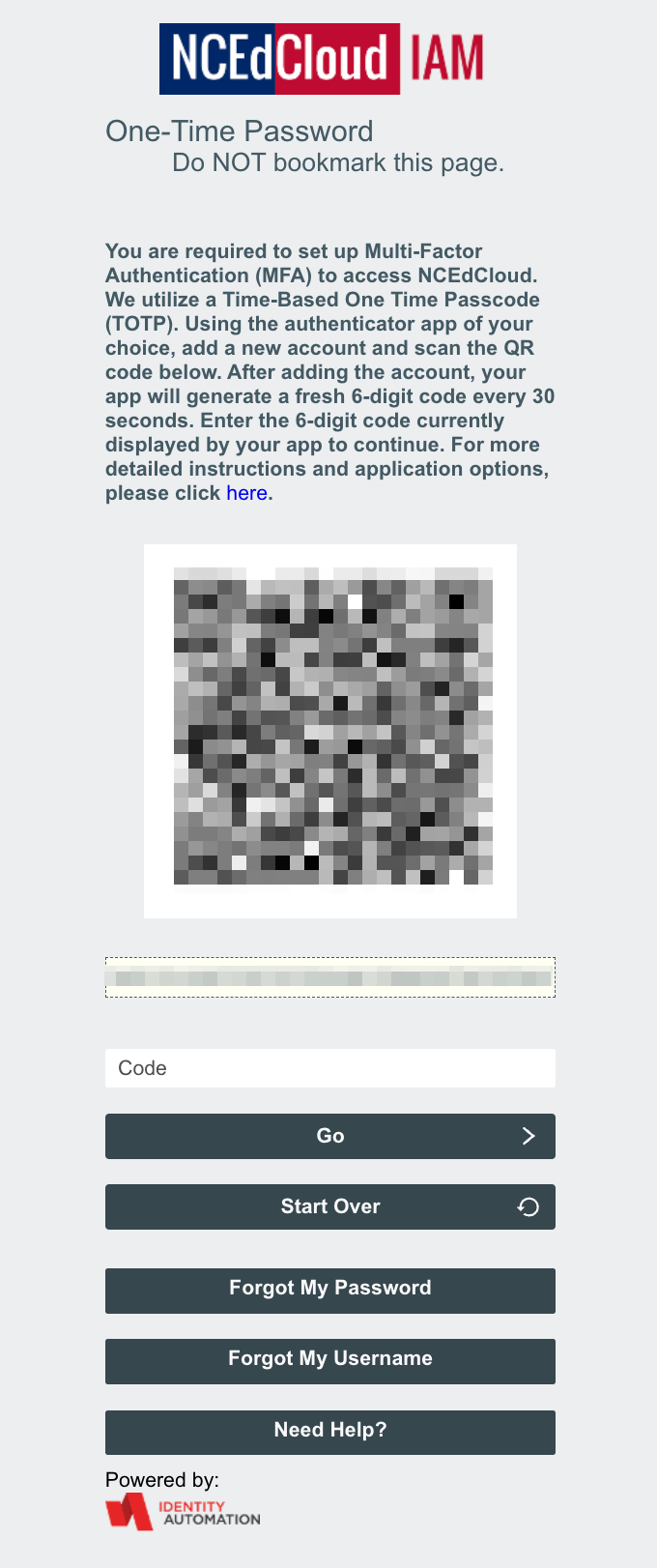
Open your authenticator app and scan the QR code to link it to your NCEdCloud account. Once scanned, the app will begin generating 6-digit codes you'll use each time you log in.
After setup is complete, simply enter the code shown in your app when prompted.
FAQ:
Don’t see a QR code?
If you haven’t set up TOTP yet but the QR code screen doesn’t appear, contact your district’s IT team to request a TOTP reset.
What if I want to switch to a different TOTP App?
- Log into NCEdCloud.
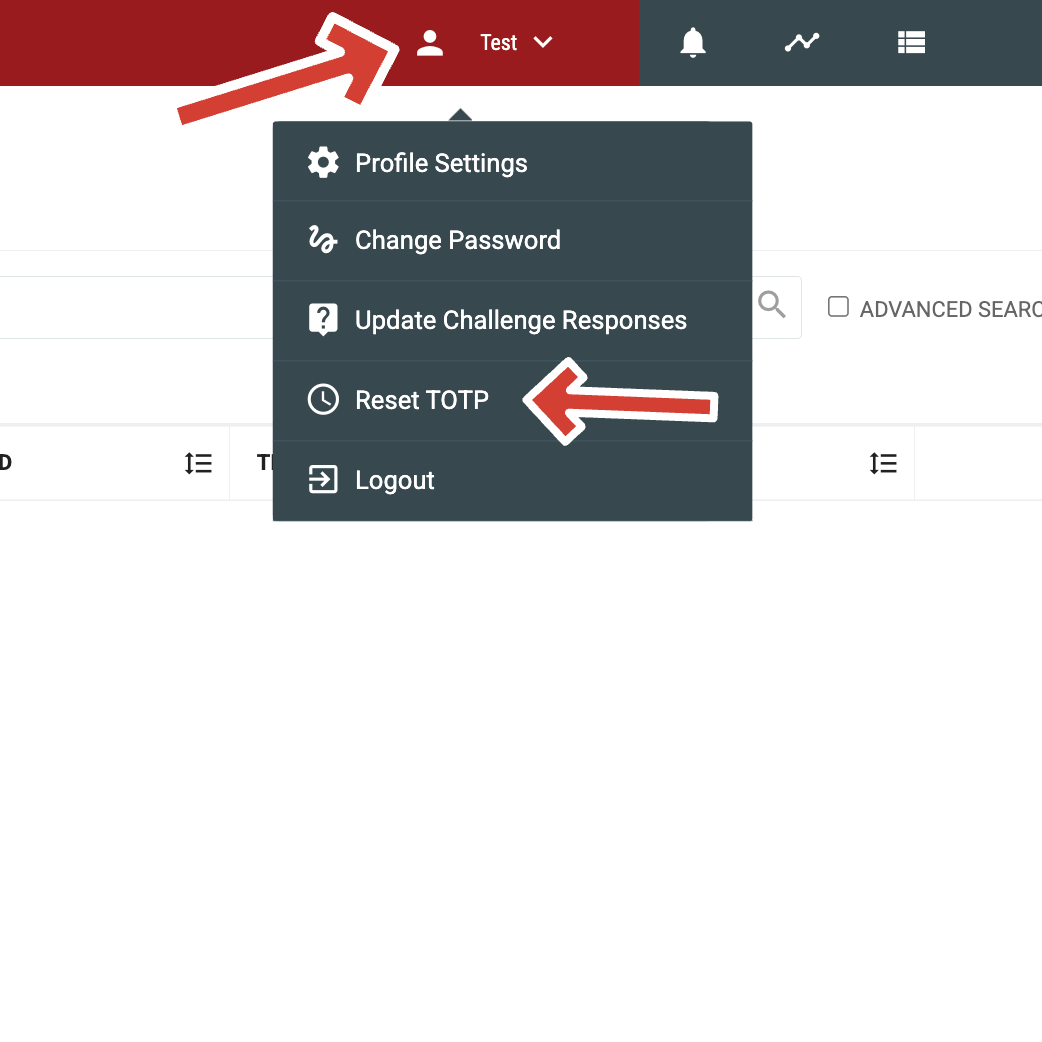
- Click your name in the top-right corner and select 'Reset TOTP' from the dropdown.
- Click Yes to confirm the reset.
- On your next login, you'll be guided through scanning a new QR code to set up your new app.
What if I get a new phone or device?
If you switch to a new phone, tablet, or computer, you may need to set up TOTP again.
Before switching: Transfer your authenticator app to your new device first and confirm it's working before you give up access to the old one.
Already switched: If you no longer have access to your old device or authenticator app, contact your district IT staff. They can reset your MFA so you can complete TOTP setup again on your new device. You'll be guided through the QR code setup on your next login.
What if my device is lost or stolen?
Contact your district IT staff immediately. Once they reset your MFA, you can log in to NCEdCloud and complete the TOTP setup again by scanning a new QR code on your replacement device.