Multi-Factor Authentication (MFA) adds an extra layer of security to user accounts. This enhanced security may be required for various reasons, such as accessing Personally Identifiable Information (PII) of students and/or employees, financial or HR data, or administrator and technical support accounts. Users that don’t have privileged roles, can have their accounts set to require MFA whenever they log in. An LEA Administrator simply needs to upload a file with the employees needing MFA added to their account. Please note: Only users with the NCEdCloud LEA Administrator role will have access to submit this workflow. More information on how MFA is used with NCEdCloud can be found here: Getting Started with Time-Based One-Time Passcode (TOTP)
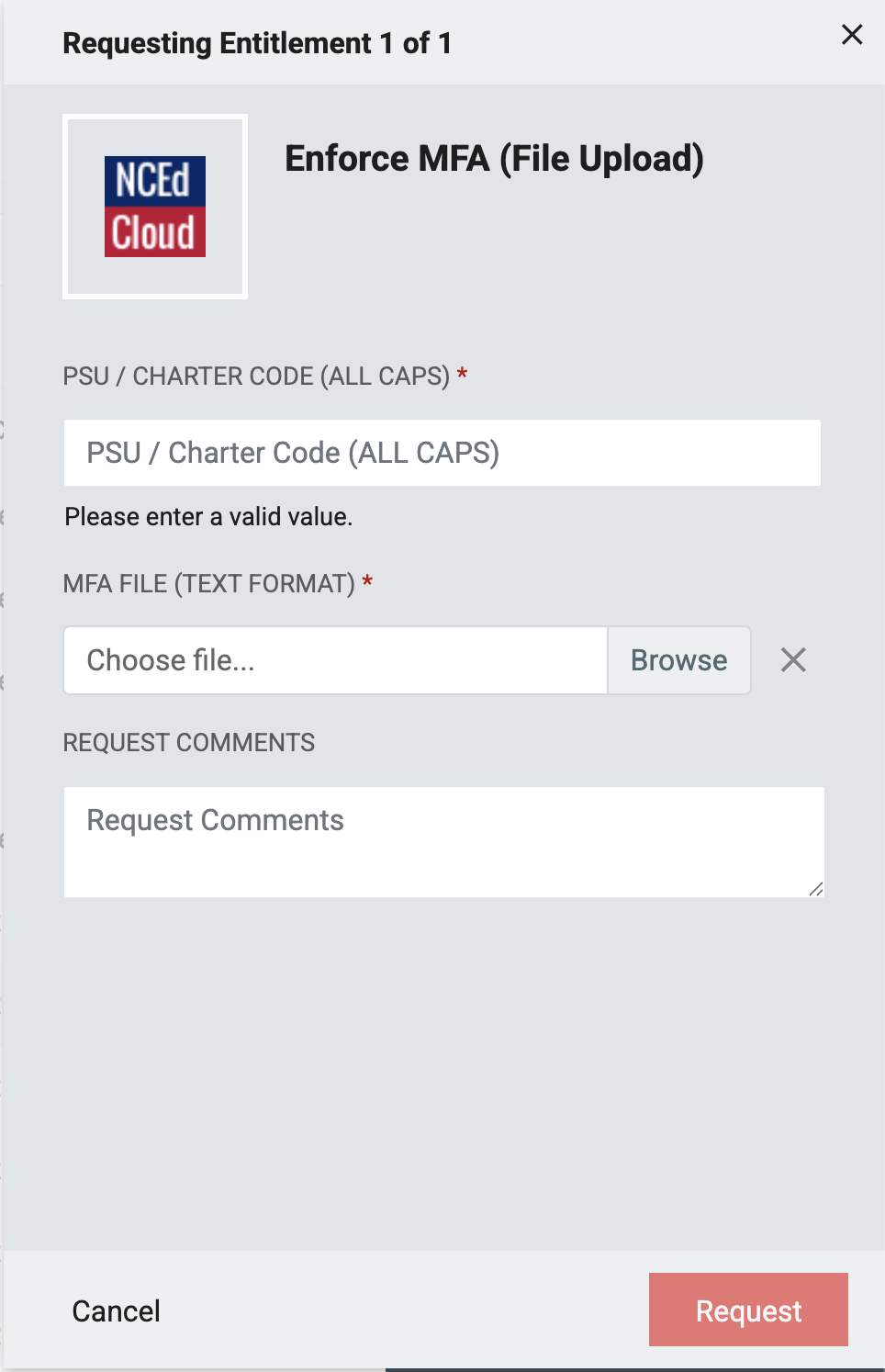
*Steps required to access this workflow can be found here
PSU CODE (Required): 3-digit PSU Code of the LEA Administrator requesting this workflow
MFA FILE (TEXT FORMAT) (Required)(Upload):Click the 'Browse' button, navigate to your file directory, and upload a file that contains a list of Staff user UIDs.
File formatting:
- File must be save as a .txt file
- No file headers
- Each line should contain a single numeric UID with 10 or less digits
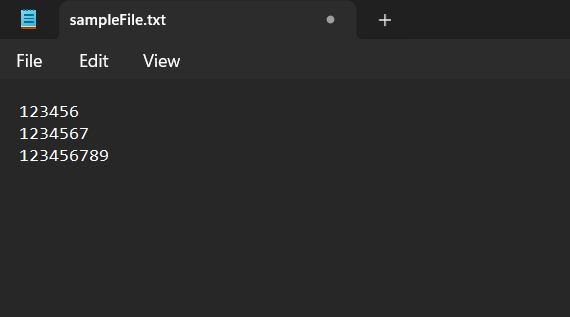
Example file
REQUEST COMMENTS (Optional): Enter any description you’d like to have associated with this group of UIDs
The validation process will first check if the above specifications are met. If validation fails here, the administrator should receive an email indicating which UID in the file resulted in the rejection.
The second validation step ensures that all of the users in the file are in the same PSU as the requestor (who specified a PSU during file submission) and that the accounts are active. If the file is rejected here, the administrator should receive an email indicating which UID in the file resulted in the rejection.
Once validation is complete, the UIDs will be iterated through and have the MFA flag set if they do not already. If they already have the flag set, no action is taken.
In the event that a user's UID did not pass the verification process you will receive an email containing the Staff user UID and a brief explanation. You will then need to remove the user's UID from the file and resubmit the workflow.
Note: All required fields will need to be completed before you're able to click the request button to submit this form. The required fields are listed in this doc and are also marked with a red asterisk(*) on the form.
FAQs
What if I can't see the "Enforce MFA (File Upload)" request in the catalog?
You will need to have the LEA Administrator Role in order to access this request. More information on requesting Privileged Roles can be found here: Privileged Roles Info
How do I use MFA to login to NCEdCloud?
Additional information on how to use MFA to login to NCEdCloud can be found here: Getting Started with Time-Based One-Time Passcode (TOTP)
What happens after I submit the "Enforce MFA (File Upload)" form?
After submitting the "Enforce MFA (File Upload)" form you will receive an email to the email address listed in NCEdCloud account. If you have any question about this workflow please submit a support ticket with Identity Automation by using the support portal (How to submit support ticket) or by email to support@identityautomation.com