Enforce MFA (Single User)
The Enforce MFA (Single User) workflow is an opt-in process that enables staff to enroll into Time-Based One-Time Password (TOTP) multi-factor authentication for their NCEdCloud account. This guide outlines how to access the workflow and submit an opt-in request.
Accessing the Workflow
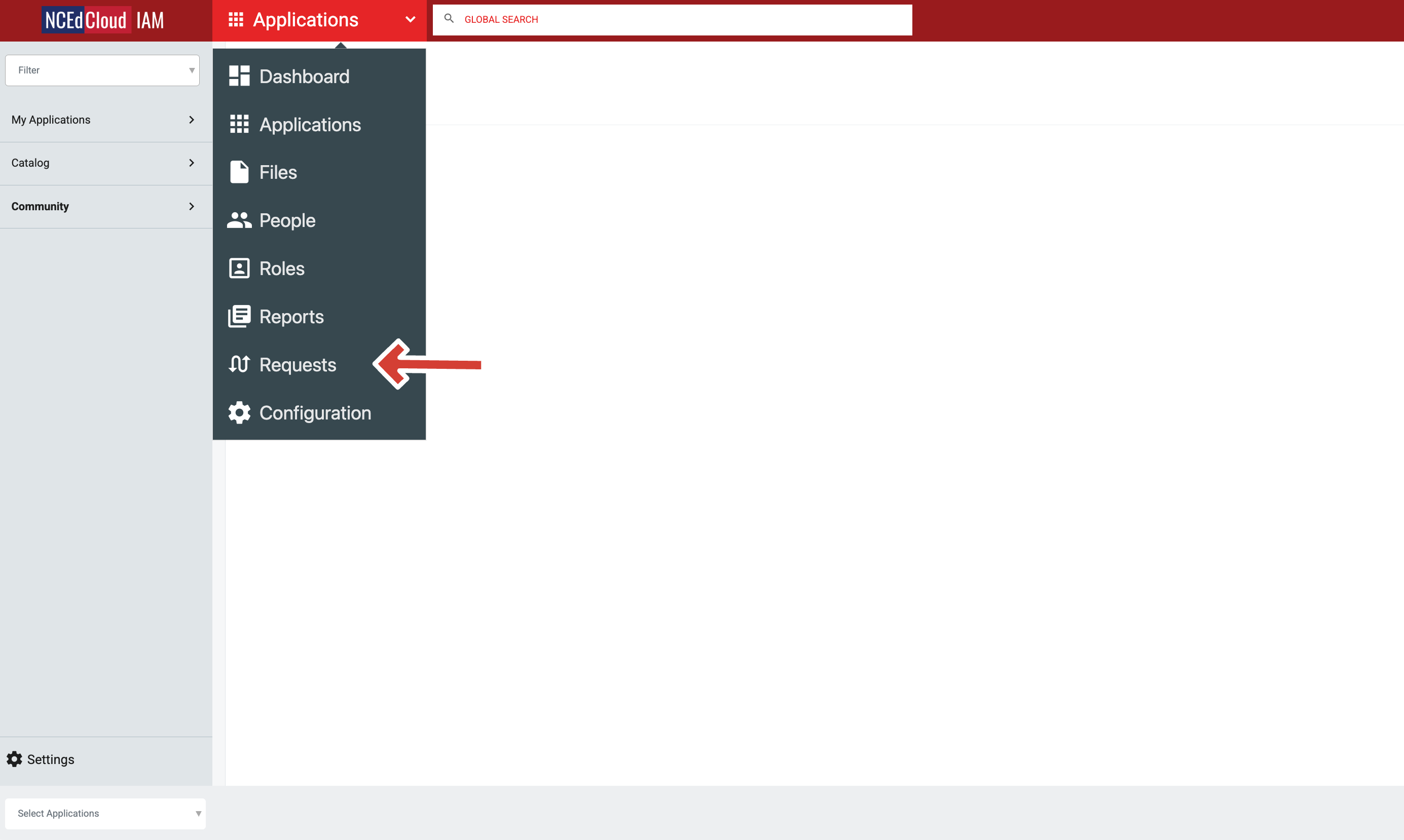
To access the Request Module start by logging into NCEdCloud and clicking on the "Applications" drop down located in the top left of the screen and then selecting "Requests"
In the Requests Module, click Entitlements/Catalog in the left-hand column. On the Catalog screen, you can see all available workflows you can request. First, find the Enforce MFA (Single User) workflow and select it by checking the box next to it. Then, click the Request button at the bottom left of the screen.
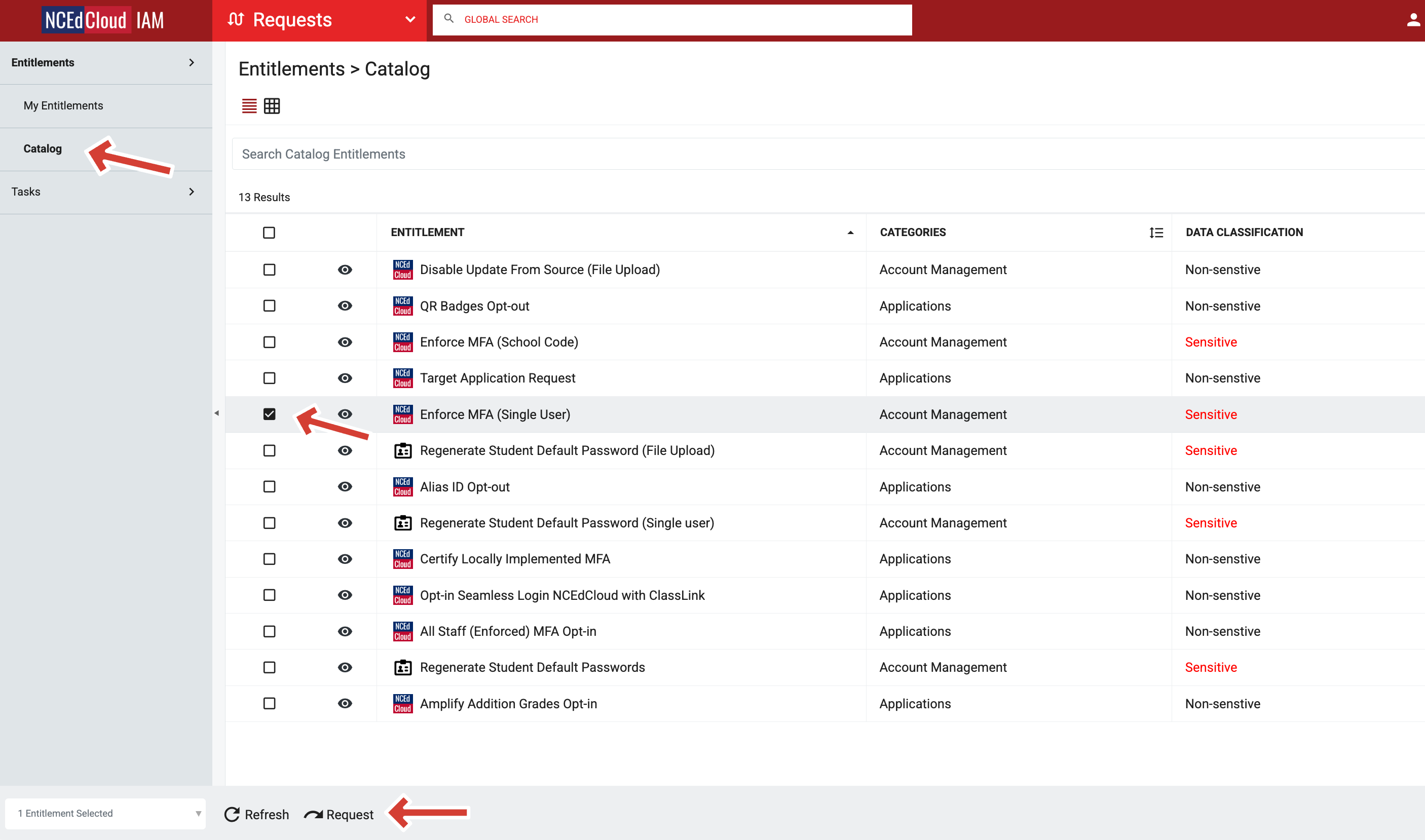
If you don't see the Enforce MFA (Single User) workflow, your PSU is implementing MFA locally. Contact your local IT team for more details.
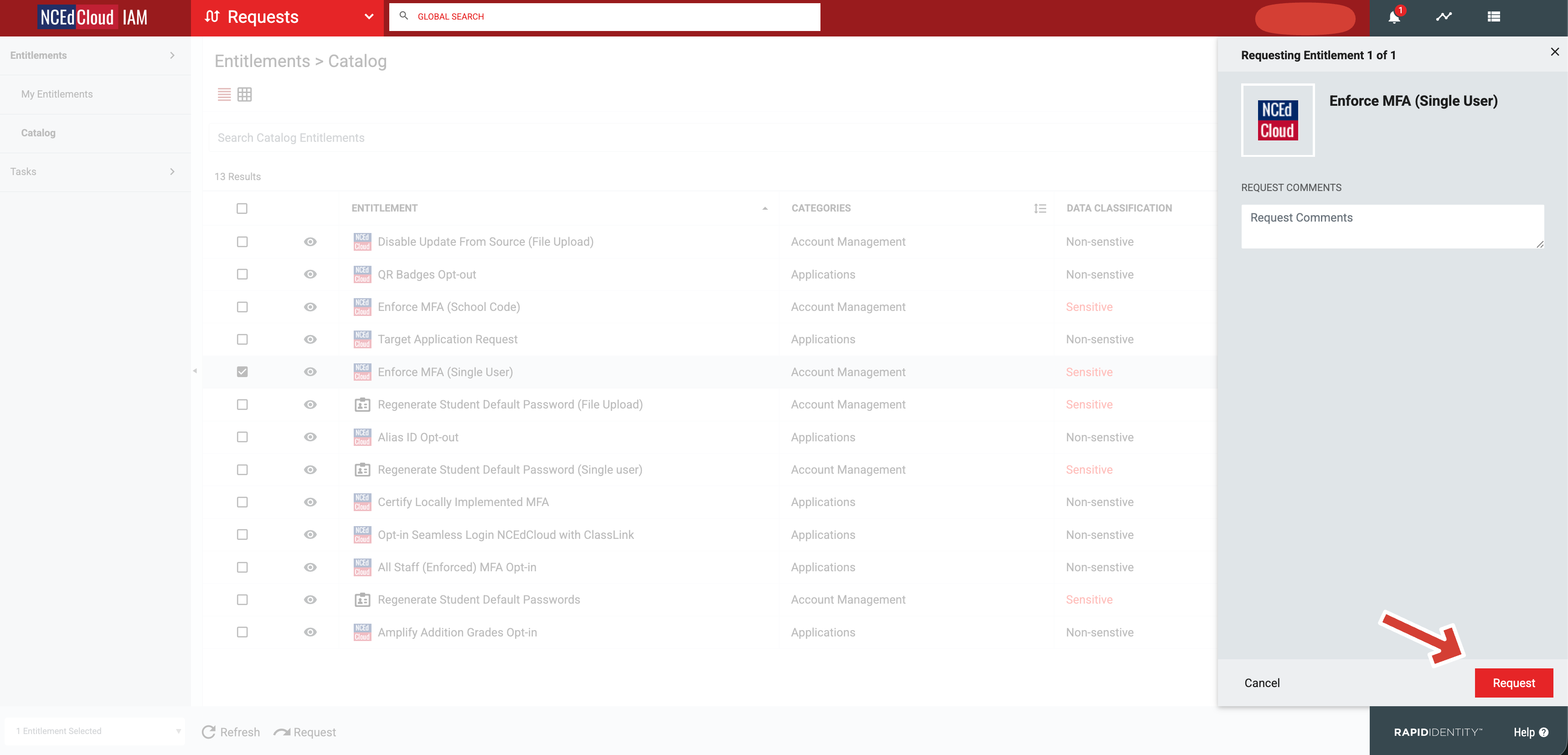
On the pop-out screen, you can submit the workflow by clicking the Request button at the bottom right. The Request Comments field can be left blank.
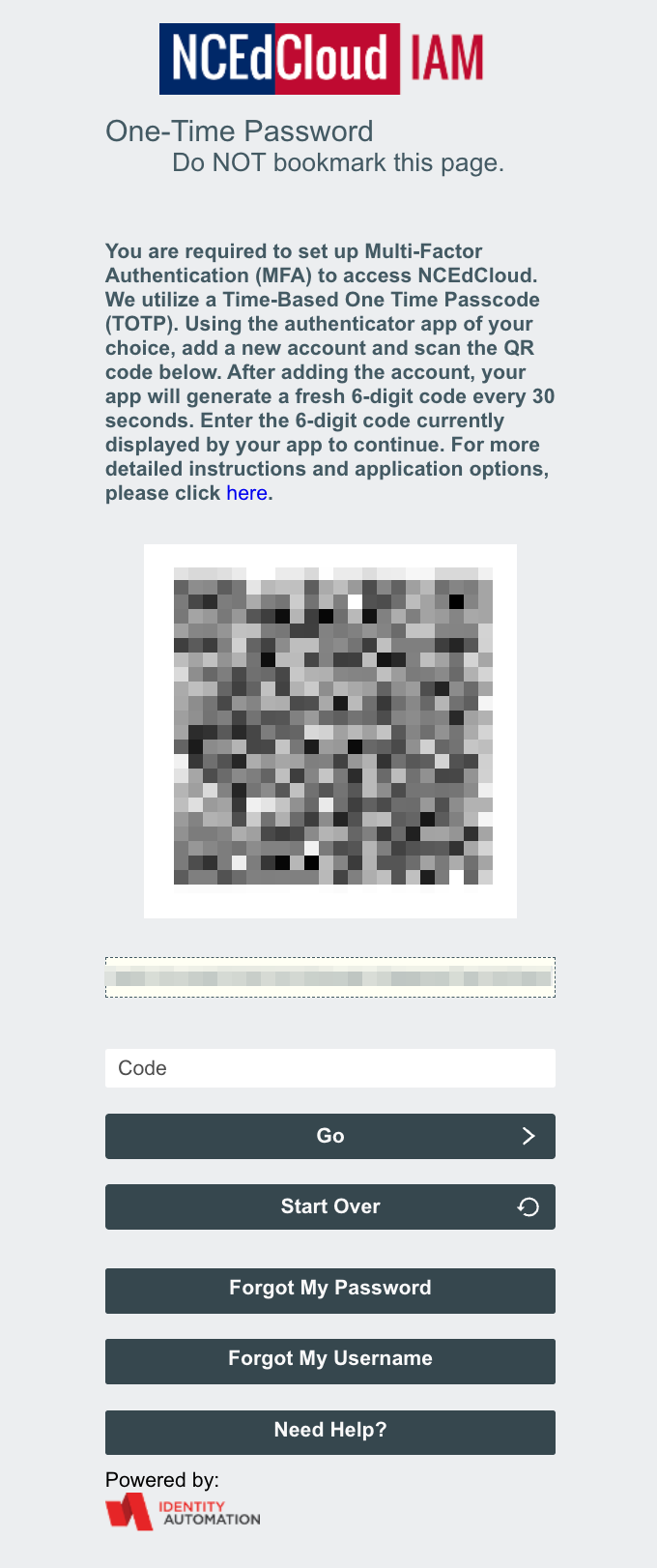
Upon your next login, you will be prompted to set up your TOTP. If a QR code is not displayed during login, please contact your local IT team to have your TOTP reset. For more information on TOTP and setup instructions, click HERE