The 'Disable Update From Source Data (File Upload)' workflow allows you to temporarily pause updates or disable Staff and Student accounts by uploading a list of UIDs
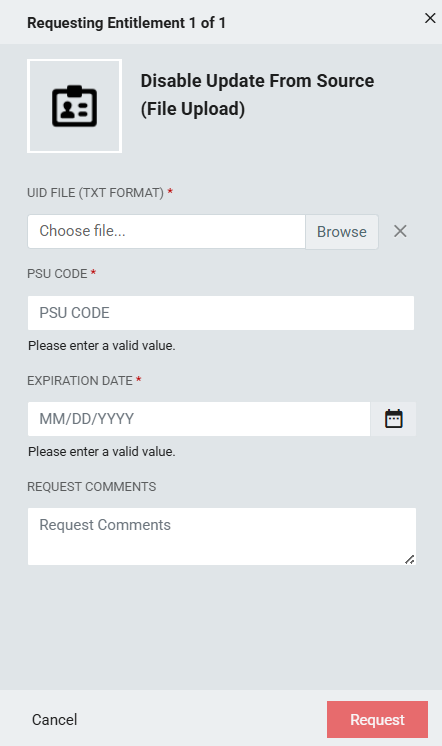
*Steps required to access this workflow can be found here
UID FILE (TXT FORMAT) (Required)(Upload):Click the 'Browse' button, navigate to your file directory, and upload a file that contains a list of user UIDs.
File formatting:
- File must be save as a .txt file
- No file headers
- Single UID per line
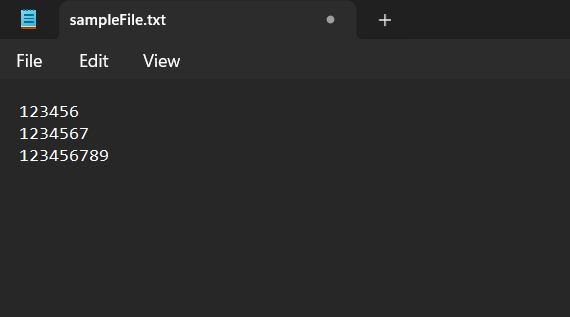
Example file
PSU CODE (Required): 3-digit PSU Code of the Requestor.
EXPIRATION DATE (Required): The maximum duration an NCEdCloud account can have the 'Disable Updates From Source' flag applied is 90 days. Please select an expiration date that is within 90 days of the initial request date.
REQUEST COMMENTS (Optional): Not required, Please reach out directly to Identity Automation (support@identityautomation.com) if you have any questions about this request.
Important Notes:
If the specified expiration date exceeds 90 days, it will automatically be adjusted to 90 days from the original request date. To request a longer expiration period, please resubmit the request with the list of targeted users. Be sure to resubmit the request before the expiration date to avoid disruption.
All users listed in the uploaded file must be currently active and associated with your PSU. If any user in the file is not active in NCEdCloud or is not affiliated with your PSU, you will receive an email (sent to the address associated with your NCEdCloud account) identifying the affected user(s). You may then remove the listed user(s) and resubmit the request.
All required fields will need to be completed before you're able to click the request button to submit this form. The required fields are listed in this doc and are also marked with a red asterisk(*) on the form.
FAQs
What if I can't see the "Disable Update From Source Data (File Upload)" request in the catalog?
You will need to have the LEA Administrator Role in order to access this request. More information on requesting Privileged Roles can be found here: Privileged Roles Info
What happens after I submit the "Disable Update From Source Data (File Upload)" form?
After submitting the 'Disable Update From Source Data (File Upload)' request, please check the inbox of the email associated with your NCEdCloud account. If there is an issue with the uploaded file, you will receive an email with instructions on how to resolve it. If you do not receive any emails, you can verify the request by visiting the People module in NCEdCloud to confirm that the users were processed and the 'Disable Update From Source' flag was applied. If you have any questions or concerns please reach out directly to Identity Automation (support@identityautomation.com).